


 |
(Click Image for Larger View) |
Saturday, 18 August 2012
Thursday, 2 August 2012

The computer was brought to me over a blue screen error. Most times reinstalling the OS corrects the problem. My problem was the installing kept hanging before displaying the available drives to choose from. Realizing this was probably a hardware issue, I connected to a new HD and still I'm still hanging. Bad RAM?? I pulled one of the two chips and BINGO! --it finally begins the installation. Out of curiosity I opened the customers disk drive to see why disks kept being spit back at me and JACK POT! Apparently their kid fed a poker chip into the disk slot. On the customer's return I told the kid "You play and good game, next time keep your chips on the table."
Monday, 4 June 2012

Leap claims to be 200 times more accurate than the Microsoft Kinect or your smart phone. They are available for pre-sale for $69 set to be shipped late this year. The future of peripherals is here.
From their site:
Say goodbye to your mouse and keyboard.
Leap represents an entirely new way to interact with your computers. It’s more accurate than a mouse, as reliable as a keyboard and more sensitive than a touchscreen. For the first time, you can control a computer in three dimensions with your natural hand and finger movements.
This isn’t a game system that roughly maps your hand movements. The Leap technology is 200 times more accurate than anything else on the market — at any price point. Just about the size of a flash drive, the Leap can distinguish your individual fingers and track your movements down to a 1/100th of a millimeter.
This is like day one of the mouse. Except, no one needs an instruction manual for their hands.
Wednesday, 23 May 2012
This repair can garder from $50- $100 cash profit. After the initial $55 material cost any future work of this kind costs only a penny. So for one penny and about an hours work you can make up to a hundred dollars. Hence I call this the Penny Trick.
 HP made a big mistake on the DV9000 and DV6000 models. A year or more after purchasing on of these laptops the video output will go completely out. The LEDs and will light up showing the computer's on, but the sad screen will stay completely blank. Many shops will take the easy way on this one and replace the entire motherboard. It's unnecessary. Let's point the finger at the real problem child here, the GPU or Graphics Processor. When these laptops heat up the solider connecting the video chip to the board weakens and loses connection. An inadequate heat sink is the usual culprit. The same thing happens to the Xbox with the RROD or Red Ring of Death.
Items Needed:
- A Digital Probe Thermometer ---$20
- Thermal Compound ---$5
- Butane Torch ----$25
- Aluminum Foil ----$1
- Scotch tape ----$1
- Small Screw Driver ----$1
- A Penny ---$0.01
Okay before you go to town pulling the 50 some odd screws it's going to take to get the motherboard out I must note- be cautious to prevent ESD. Electrostatic Discharge or simply static shock could damage your board especially the RAM. If affordable buy a wrist strap and ground yourself. Other wise at least touch metal to ground yourself before you begin. Also I take no responsibility for these plans- Procede with Caution.
With that out of the way take your small screw drive and disassemble the laptop down to the motherboard. Take the heat sink off paying close attention to what chips it's covering. Definitely make certain to take off the processor and the RAM. Of course remembering where every cable part goes, take notes if necessary. With the board out in front you'll need to identify where the GPU is. On most boards it will be close to the processor and most likely covered by the same heat sink. If in doubt look it up.
Now cut a piece out of the foil about twice the size of the chip. You'll want this to be two layers if not three. Press this piece of foil against the chip to get a good indentation or imprint. Cut out that imprint so this will fit nicely around the chip. Now tape the outsides of the foil to keep it in place. This is done to cover the surrounding board from the flame.
Next turn on the digital probe and set it to fahrenheit. Tape the metal part of the probe directly behind the chip on the other side of the board. Since you may want to hold the board steady, use an oven or something similar to hold the side taped to the monitor.
Now comes the fun. Light up the torch. We're not trying to fry the board here. Only heat the GPU to a certain temperature to reconnect the existing solder under the chip. Similar to reballing except not taking the chip off. Bring the torch down to an acceptable level to heat the chip and not burn the surrounding components. Watch the temp and take it up to around 220f. The whole time keeping the flame circulating to even out the heat. Much hotter you'll burn the chip, any less the solder won't completely melt. Only keep it at that degree for a few seconds, then let it cool off.
After the board's cooled off apply the thermal compound to the back of the chip and to the back of the processor. Now to ensure that heat doesn't cause this problem again. Place the penny on top of the video chip and replace the heat sink on top of that. While not absolutely necessary, this helps the heat dissipate off the chip and ensures this fix will last much longer. If it's to tight of a squeeze a copper shim works fine as well. Am I the only one that thinks it's funny to have a penny inside a laptop? Just to assist here's a vid with a similar fix:
Tuesday, 15 May 2012

Bill of Materials:
- Motherboard
- Processor (CPU)
- Power Supply (PSU)
- PC Case/ Enclosure
- Hard Drive (HD)
- RAM
- Monitor
- Key Board & Mouse
- Blank CD or DVD
- 2 Power chords
Gathering Components:
New Egg is a great start down that path to a new build. They are also friendly on returns in case you mistakenly buy the wrong piece. For price comparisons you also check tigerdirect and mwave. You can save by finding a used Case from a broken or cheap computer on Craigslist, Ebay, thriftstore, or yard sale. The parts inside that will be most useful are the power supply (plug it in, if the LED in the back blinks it's usually dead, if it stays lit it's usually good), the CD/DVD drives (must have a DVD drive if you want to boot anything greater than XP), and the Hard Drive (which should have a minimum of 40 GB to run XP, and have the connection your setting up for whether it be IDE or SATA). These parts alone will shave at least a Benjamin off the price tag.
Now how does this have to do with repair? Simple. Windows being So vulnerable to virus leaves users to discard perfectly good computers. While hardware will eventually bad, usually the problem lies in the OS (operating system). If the PC will at least turn on and show any thing on the screen, most if not all components are working. If the RAM is bad it will indicate in the opening screen or by a series of audible beeps. You'll learn if the hard drive is bad by accessing the BIOS or attempting to install Windows.
Downloading Windows:
First you need a torrent downloader. Those that have downloaded free music before might remember the days of Limewire, Frostwire, or even Napster. These were just user friendly torrent down-loaders. While there are many, I've used Azureus Vuse for years and found it to be the fastest and most reliable. Once you have this the world is yours in terms of media. Music, movies, and software all here FREE. With Windows downloaded you just saved yourself almost 200 USD. Now on to our library of torrent. There are many sites that supply links to torrent. Better yet one site to list them all. Torrentz has got to be the end all list of torrent. That with the power or Google or Toorgle, you can find anything. Be Careful. Install some trusty antivirus before shoveling through the trenches of torrent. Avast has kept my hands clean for some time. It should to the same for you.
Installing Windows:
First we need to access the BIOS. Usually the beginning screen right when the PC turns on will display which key to hit to enter the BIOS options. If in doubt hit all the F keys, Escape, and Delete- has to be one of them right!? In the BIOS select Advance Options (it goes under different names, what you're looking for is the boot option- or where the computer will begin searching for an OS). Select the CD/DVD to be the primary boot, and the hard drive can be secondary. Hit F10 and save your settings. Now when the PC is reset it will read the disk with Windows and say "Press any key to boot from cd or dvd" with a black screen. The basic drivers will be installed, then you will be asked to select a drive to install the OS on. Choose your drive, delete all partitions, then do a quick format with NTFS (it's faster). From here it installation should be a breeze, self explanatory.
To assist in the build New Egg has a 3 part lengthy yet through instructional video. Enjoy.
New Egg is a great start down that path to a new build. They are also friendly on returns in case you mistakenly buy the wrong piece. For price comparisons you also check tigerdirect and mwave. You can save by finding a used Case from a broken or cheap computer on Craigslist, Ebay, thriftstore, or yard sale. The parts inside that will be most useful are the power supply (plug it in, if the LED in the back blinks it's usually dead, if it stays lit it's usually good), the CD/DVD drives (must have a DVD drive if you want to boot anything greater than XP), and the Hard Drive (which should have a minimum of 40 GB to run XP, and have the connection your setting up for whether it be IDE or SATA). These parts alone will shave at least a Benjamin off the price tag.
Now how does this have to do with repair? Simple. Windows being So vulnerable to virus leaves users to discard perfectly good computers. While hardware will eventually bad, usually the problem lies in the OS (operating system). If the PC will at least turn on and show any thing on the screen, most if not all components are working. If the RAM is bad it will indicate in the opening screen or by a series of audible beeps. You'll learn if the hard drive is bad by accessing the BIOS or attempting to install Windows.
Downloading Windows:
First you need a torrent downloader. Those that have downloaded free music before might remember the days of Limewire, Frostwire, or even Napster. These were just user friendly torrent down-loaders. While there are many, I've used Azureus Vuse for years and found it to be the fastest and most reliable. Once you have this the world is yours in terms of media. Music, movies, and software all here FREE. With Windows downloaded you just saved yourself almost 200 USD. Now on to our library of torrent. There are many sites that supply links to torrent. Better yet one site to list them all. Torrentz has got to be the end all list of torrent. That with the power or Google or Toorgle, you can find anything. Be Careful. Install some trusty antivirus before shoveling through the trenches of torrent. Avast has kept my hands clean for some time. It should to the same for you.
Installing Windows:
First we need to access the BIOS. Usually the beginning screen right when the PC turns on will display which key to hit to enter the BIOS options. If in doubt hit all the F keys, Escape, and Delete- has to be one of them right!? In the BIOS select Advance Options (it goes under different names, what you're looking for is the boot option- or where the computer will begin searching for an OS). Select the CD/DVD to be the primary boot, and the hard drive can be secondary. Hit F10 and save your settings. Now when the PC is reset it will read the disk with Windows and say "Press any key to boot from cd or dvd" with a black screen. The basic drivers will be installed, then you will be asked to select a drive to install the OS on. Choose your drive, delete all partitions, then do a quick format with NTFS (it's faster). From here it installation should be a breeze, self explanatory.
To assist in the build New Egg has a 3 part lengthy yet through instructional video. Enjoy.
Thursday, 10 May 2012
One of the easiest parts to replace and one of the more lucrative is the power supply or PSU. It's also very easy problem to diagnose. A customer calls and explaind that their computer will not turn. If the computer shows any lights or anything on the screen then the problem is not the power supply. The only light that may be showing is a blinking LED on the power supply indicating it's broken. Otherwise the computer won't show any signs of life. Here in California I can easily charge any where from $60 to $75 for this repair including the part. Used power supplies are easy to find in old discarded PCs, at thrift stores, or on craigslist.
The connections and size of the PSU vary, but are very similar and universal. The main connections you'll be looking at are:

- 20 or a 24 pin ATX connector on the board.
- 4 Pin (square) 12V connection
- 4 Pin Standard 5V/12V drive connection
- Sata connection (newer computers)
Some older PSUs may not have the connections yours requires. Luckily the wires are normally color coded and can be cut and rewired. An example is the 4 pin (square) connection. Not all PSUs have these. Cut the ATX connection off the old broken unit. Since there are 4 wires twist the 2 yellows together and the 2 black ones together. Grab an extra 'Standard 4 Pin' power connection and shove the yellow exposed wire securely in the slot with the yellow wire leading up to it and the same for black and then tape it up. This way you won't need to go hunting for one with this ATX connection. As always be safe when handling the PSU. The capacitors inside can pack a punch!
Sunday, 8 January 2012


A customer brought a HP G62 laptop with a video issue. It was displaying a light blue tone on every background where it should have been white. Also the pixels were randomly turning on and off.
The funky discoloring initially looked like it could have been a virus. Knowing about the problems that plague the DV6000 and DV9000 HP laptops, it was possibly a video issue.
I disassembled it down to the board and discovered there wasn't a visible GPU. The processor has two dies on the chip to possibly indicated integrated graphics.
Perplexed I put it all back together and discovered the problem has fixed itself. The cable coming from the LCD screen was apparently loose from the board and was causing the glitch.
Saturday, 24 December 2011


Before you decide to run and flag the security, you might wish to be briefed on the procedure called personal pick up. Now at Apple, instead of pulling out cash or card, you can simply pay by phone as you would any App purchase.

Keep the original packaging and Apple will replace or refund any of these items no questions asked.
This leads one to ask- Is this the future of retail shopping? If so what store will be next? Is the Apple store employee that informed me of this procedure aware that her job is at stake?
What do you think?
Friday, 16 December 2011
In an effort to upgrade my iMac to play Sky Rim, I made a dash to Fry's the local electronics sotre here in California. I bought a 4 GB SODIMM 667mhz stick of RAM. It put me back about $67 after tax. Installed and booted no problem. Then hours later I noticed my browser dumping my pages every 5-10 minutes and the OS completely freezing up so it needed to be rebooted. Clicking the Apple at the top left and selecting About this Mac, it show there to be 6gb total installed. The other slot already had a 2gb chip. I decided to pull my 4gb and replace it with another 2gb. Reset the computer and the OS has been running smoothly ever since. Which makes me ask, Is this a software or firmware restriction of RAM capacity? Suppose the only other future upgrade would be replacing the hard drive disk for a solid state drive. Interesting side note- there's a drawing beneath the pedestal that illustrates the procedure for upgrading or replacing your RAM just in case you forgot.


Tuesday, 29 November 2011
 |
| Before |
 |
| After |
Want an easy way to make your system significantly slow and sluggish? Run it on the floor in a room full of dust for a year and let it slowly absorb every particle. Your PC is not a vacuum. If your CPU heat sink looks like this, I should turn you in for attempted arson. Please excuse the sarcasm. Just take note: The computer I pulled this from had a bad stick of RAM preventing it from booting. The RAM on this particular model Dell Inspiron 530s like many others sits next to the CPU. Heat dammage? It's likely. I identified the problem from 4 short beeps from the BIOS on post. I used an air can to blow the dust out and a vacuum next by to catch it. An old toothbrush to loosen the remaining dust in the corners, and one last vacuuming to finish the job.
Tuesday, 11 October 2011
If you just arrived here, then ...
I started this blog like 10-11 months ago which, when compared with other web sites (most) is like a newborn baby :). This blog currently has like 800 + articles, all written by me. It gets a reasonable amount of traffic and as you know I use Google Adsense on the site which makes a very little $$ as well (better than nothing, hey!).
I started this blog like 10-11 months ago which, when compared with other web sites (most) is like a newborn baby :). This blog currently has like 800 + articles, all written by me. It gets a reasonable amount of traffic and as you know I use Google Adsense on the site which makes a very little $$ as well (better than nothing, hey!).
But after all these months, suddenly out of nowhere, a thought came to my mind (errr, damn you "the thought"!! :)) around the idea of the "true ownership". First it started small but after few days, well, I became quite obsessed with it and and the end, it kinda outranked me :).
Now as many knows, all the content on this site, although I created them (some inspired by others work of course) but still the content is hosted on Google owned Blogger (this isn't really that big of a deal, but as you know, once an obsession takes over you ... ;-)).
Now as many knows, all the content on this site, although I created them (some inspired by others work of course) but still the content is hosted on Google owned Blogger (this isn't really that big of a deal, but as you know, once an obsession takes over you ... ;-)).
In reality, I don't have any authority over the content of the site. So I guess that (like anyone else would), I just wanted something of my own. I don't how what the future might bring. But I just thought, it would be nice if one day I could look back and think, "at last, something of me own" :).
Though the idea of ownership is a bit of an anomaly itself because as many knows .... okay you know what, let's just forget about those "philosophical" nonsenses and let me come straight to the point :).
Though the idea of ownership is a bit of an anomaly itself because as many knows .... okay you know what, let's just forget about those "philosophical" nonsenses and let me come straight to the point :).
In simple terms, if you think what I write is "okay", then I humbly present you my own brand new site called The Hectic Geek (acquired through the very little money made by this little blog. So dear "this little blog", thank you!).
I won't forward this site's content over there thus I'll have to start from scratch, all over again. It's a long and painful process, if you have been blogging and know about traffic growth, etc. But, I'd like to start anew.
Right now the new site looks like shi* (although this blog is no different either :D). I'm really new to WordPress platform so gotta learn few things here and there (to tell you the truth, I don't even know how to change sidebar in WP :/).
The site has like 3 articles that I wrote today (2011/10/11). Other than that, nothing much to say actually. But that doesn't mean that I'll be leaving this blog forever. Although I won't be writing new content here but I will always come and look for comments and do my best to give answers nonetheless.
I don't have thousands of subscribers (about 41 according to Google) but if you're one of those geeks that come and read this site, somewhat frequently, then you know where to find me :).
Sunday, 9 October 2011
If you have a reasonably faster internet connection then using free & popular tools such as the TeamViwer for instance, you can easily establish a remote desktop connection that has a lot of uses. This is a feature that's being largely used by both professionals (remote help desk providers) and users all around the world which helps to access a remote location with as low cost as possible :).
Anyhow, the latest news is that, Google has released an extension for their Chrome web browser which basically enables the users start a remote desktop connection for free!. The extension is currently at its beta stage and is about 19MB in size (it was introduced like 2 days ago ="Oct 7, 2011", and used to be about 17MB in size but have added 2MB already, seems like they've done some "heavy" bug fixes already).

It's a cross-platform "thing" (obviously). So as long as you have installed Google Chrome web browser on MS Windows, Mac OSX, GNU/Linux or any platform the browser is installable, you should be able to start a remote desktop connection. The extension uses the Google G-Talk web API thus will ask you for your Google account access + at this point there seems to be no audio support but both video and text message sending is enabled by default.

As with other applications the remote desktop connection is implemented by using a access code (12 digits), encrypted. For instance, you can either generate a code for your computer and provide it to the user who wants to access your PC remotely or request their code and start the connection by yourself.

Either way, the code set-up is needed only once but if the connection got disconnected for some reason, then you'll have to enter a new code for security reasons. Since the basic foundation of Chrome OS is actually the web browser itself thus this will also be seamlessly implemented in the Chrome OS too.
So, if you want to do more than web browsing the Google Chrome and want to start both a nerdy or professional remote desktop connection for free then why not try this Chrome extension!.
Once installed you can access it by simply opening a new window and then under the sub heading "Apps" click on its icon as shown with below screenshot and can even access few of its settings window (creating a shortcut, etc) too.
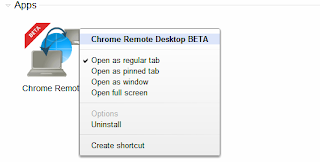
You can also read this official help page for more information.
Anyhow, the latest news is that, Google has released an extension for their Chrome web browser which basically enables the users start a remote desktop connection for free!. The extension is currently at its beta stage and is about 19MB in size (it was introduced like 2 days ago ="Oct 7, 2011", and used to be about 17MB in size but have added 2MB already, seems like they've done some "heavy" bug fixes already).

It's a cross-platform "thing" (obviously). So as long as you have installed Google Chrome web browser on MS Windows, Mac OSX, GNU/Linux or any platform the browser is installable, you should be able to start a remote desktop connection. The extension uses the Google G-Talk web API thus will ask you for your Google account access + at this point there seems to be no audio support but both video and text message sending is enabled by default.

As with other applications the remote desktop connection is implemented by using a access code (12 digits), encrypted. For instance, you can either generate a code for your computer and provide it to the user who wants to access your PC remotely or request their code and start the connection by yourself.

Either way, the code set-up is needed only once but if the connection got disconnected for some reason, then you'll have to enter a new code for security reasons. Since the basic foundation of Chrome OS is actually the web browser itself thus this will also be seamlessly implemented in the Chrome OS too.
So, if you want to do more than web browsing the Google Chrome and want to start both a nerdy or professional remote desktop connection for free then why not try this Chrome extension!.
Once installed you can access it by simply opening a new window and then under the sub heading "Apps" click on its icon as shown with below screenshot and can even access few of its settings window (creating a shortcut, etc) too.

You can also read this official help page for more information.
Friday, 7 October 2011
The world wide web loses its meaning and purpose if the "contents" is only readable by either humans or computers. Thus the purpose of HTML (which is the basic framework of web pages) is to make the contents readable for both computers and humans since computers are still our slaves who's purpose is to search and structure the data so we can access them as efficient as possible (poor buggers :D).
Since its introduction, HTML has undergone 5 major "updates" and the recently introduced HTML5 is the newest version that brings a lot of changes (such as advanced multimedia support, etc).
Anyhow as said before, HTML is actually a way of representing data thus by using it as the framework, we can build pretty awesome (meaning powerful and features rich :P) applications with somewhat minimal of efforts (since we already have the basic layout from HTML for rendering the data, etc).
For instance, the standard text format (.txt) cannot handle images or anything other than text. That's why we have word processors that have both the container format + a framework of their own for inserting/deleting pictures, links or other advanced things which the basic text format is unable to "understand".
But what if we could build a universal format that understand all these things, images, text, links, graphs, videos, audio, tables, etc ... well a web page such an app, isn't it? it can display these things by default. Why?, because it uses HTML as the "engine". So since HTML is an open "language" anyone can easily use its framework and build an advanced text editor (as with this case) or anything that's supported by the HTML protocol (sort of) with ease and that's what GWrite is all about!.
I'm sorry it took this long ... but I got all excited ;-).
Anyhow let me give you some of its features first...
*. Based on the HTML5 mark-up language and the UI is written in GTK+ toolkit.
*. Very simple window yet has a lot of features. *. Even supports "MS Doc" word processor container format!.

*. Insert text and make them: Bold, Italic,Underline, Change font size, Highlight text, etc.
*. As said before, unlike with a "traditional" text editor, you can insert pictures, tables (not the ones with chair and stuff :P), URL (links), HTML codes, LaTeX math expressions, etc.
 *. View the text source in pure HTML or the usual humanly read version (without the codes, etc).

*. Add styles such as: Different headings, Bulleted/Numbered lists, Div tags, Block quotes, etc.
 *. Undo & Redo.
*. Find and replace.
*. Word counting support.
 These are among few of its main features to mention. Although it won't show any file other than in HTML or MS Doc by default but you can easily open text or other files by changing the attributes to "All files" in the open file window.
You can install GWrite in Ubuntu 11.04 Natty Narwhal, 10.10 and 10.04 (may even support 11.10, didn't check though) by simply entering the below command in your terminal window.
So, if you're looking for an opensource, HTML5 based rich text editor (with excellent features I might add) that can be used in Ubuntu or GNU/Linux in general, then GWrite is a bloody excellent utility without a doubt!. Enjoy.
Since its introduction, HTML has undergone 5 major "updates" and the recently introduced HTML5 is the newest version that brings a lot of changes (such as advanced multimedia support, etc).
Anyhow as said before, HTML is actually a way of representing data thus by using it as the framework, we can build pretty awesome (meaning powerful and features rich :P) applications with somewhat minimal of efforts (since we already have the basic layout from HTML for rendering the data, etc).
 |
| A quick picture not to make you bored with my little rambling :)... |
But what if we could build a universal format that understand all these things, images, text, links, graphs, videos, audio, tables, etc ... well a web page such an app, isn't it? it can display these things by default. Why?, because it uses HTML as the "engine". So since HTML is an open "language" anyone can easily use its framework and build an advanced text editor (as with this case) or anything that's supported by the HTML protocol (sort of) with ease and that's what GWrite is all about!.
I'm sorry it took this long ... but I got all excited ;-).
Anyhow let me give you some of its features first...
*. Based on the HTML5 mark-up language and the UI is written in GTK+ toolkit.
*. Very simple window yet has a lot of features. *. Even supports "MS Doc" word processor container format!.

*. Insert text and make them: Bold, Italic,Underline, Change font size, Highlight text, etc.
*. As said before, unlike with a "traditional" text editor, you can insert pictures, tables (not the ones with chair and stuff :P), URL (links), HTML codes, LaTeX math expressions, etc.


*. Add styles such as: Different headings, Bulleted/Numbered lists, Div tags, Block quotes, etc.

*. Find and replace.
*. Word counting support.

You can install GWrite in Ubuntu 11.04 Natty Narwhal, 10.10 and 10.04 (may even support 11.10, didn't check though) by simply entering the below command in your terminal window.
sudo apt-get install gwrite
So, if you're looking for an opensource, HTML5 based rich text editor (with excellent features I might add) that can be used in Ubuntu or GNU/Linux in general, then GWrite is a bloody excellent utility without a doubt!. Enjoy.
Fluxbox is a super fast window manager written in C++ that is being used as the GUI "creator" by many desktop environments. And just like with OpenBox (another WM) which is used in LXDE, Fluxbox is also extremely resource friendly thus it's especially being used in those "small GNU/Linux distributions" (you know small in size and resources, etc) nowadays more than ever as well.
Although the last time I tried it (bit of a long time ago actually), well it was really stable and fast but it did feel somewhat "sluggish" when it comes to minimizing or maximizing windows (with few delays just as with Openbox).
But if you want to give a try at this resource friendly window manager in Ubuntu, then the installation is pretty simple actually since it's in the official repositories. You can install Fluxbox in Ubuntu 11.04, 11.10, 10.10 and 10.04 by using the below command.
But remember, it includes the "Nightly Builds", so the packages may not be the most stable ones out there thus should only be used for testing purposes or if you want to get the latest updates of Fluxbox (and other related packages) but okay with the fact that it might drift you towards a bit of an unstable system (yikes).
To add it to Natty and install the latest builds you can use the below commands. As usual, open your terminal and enter the below commands.
But don't hope to get the same level of features with fluxbox as with Gnome or KDE for instance because at the end you'll be disappointed!.
And while using the "Fluxbox" desktop session, if you launch apps such as Nautilus file manager, then you'd run into trouble because Nautilus will try to replace the desktop management instead of fluxbox!.
But as a quick solution, we can disable Nautilus for dealing with your desktop. To do that, open the terminal window and enter the below command.
Then from the window that you get, go to: "apps" -> "nautilus" -> "preferences".
Now to your right-side scroll down until you see a setting called "show desktop" (as with below screenshot). Remove the check mark and it should solve your problem.
But as said... although it's quite fast, still, fluxbox window manager is certainly not for everyone. There I warned you! :P.
Although the last time I tried it (bit of a long time ago actually), well it was really stable and fast but it did feel somewhat "sluggish" when it comes to minimizing or maximizing windows (with few delays just as with Openbox).
But if you want to give a try at this resource friendly window manager in Ubuntu, then the installation is pretty simple actually since it's in the official repositories. You can install Fluxbox in Ubuntu 11.04, 11.10, 10.10 and 10.04 by using the below command.
sudo apt-get install fluxboxBut as a Ubuntu 11.04 Natty Narwhal user, if you want to use the latest builds of Fluxbox window manager, then you can certainly make some use out of the dedicated PPA channel (thanks to Paul).
But remember, it includes the "Nightly Builds", so the packages may not be the most stable ones out there thus should only be used for testing purposes or if you want to get the latest updates of Fluxbox (and other related packages) but okay with the fact that it might drift you towards a bit of an unstable system (yikes).
To add it to Natty and install the latest builds you can use the below commands. As usual, open your terminal and enter the below commands.
sudo add-apt-repository ppa:fluxbox-maintainers/nightlyThen log-out and on the GDM log-in screen, just choose "fluxbox" under session. That should do the trick. But remember, this fluxbox WM only supports Gnome and KDE desktops + it will not support Unity or Gnome Shell interfaces since they're build using entirely different, a bit advanced compositing WM such as Compiz and Mutter.
sudo apt-get update
sudo apt-get install fluxbox
But don't hope to get the same level of features with fluxbox as with Gnome or KDE for instance because at the end you'll be disappointed!.
And while using the "Fluxbox" desktop session, if you launch apps such as Nautilus file manager, then you'd run into trouble because Nautilus will try to replace the desktop management instead of fluxbox!.
But as a quick solution, we can disable Nautilus for dealing with your desktop. To do that, open the terminal window and enter the below command.
gconf-editor
Then from the window that you get, go to: "apps" -> "nautilus" -> "preferences".
Now to your right-side scroll down until you see a setting called "show desktop" (as with below screenshot). Remove the check mark and it should solve your problem.
 |
| This will also disable desktop icons, etc in Gnome classic and Unity too. So, unless you're gonna be using Fluxbox as your primary somewhat desktop... then this could be a headache :)... |
For the good or worse, by using online video sharing services such as the extremely popular YouTube for instance, we can watch or listen to thousands or millions of songs without having to pay a penny :). Although I don't use it that often (because I have a limited-bandwidth internet connection, damn!) but if you use it quite often then would it be nice if we could have a dedicated application that lets us listen/search & manage all the music files on YouTube from our desktop with ease?.

*. Search (with automatic suggestions) and manage playlists (with Shuffle or Repeat functions).

*. Change volume levels.
In that case, I'm pretty sure there are quite a few already but I came across this one called "MusicTube" and it's awesome!. It's a cross-platform application written in the Qt GUI toolkit and supports MS Windows, Mac OSX and Ubuntu at the moment.
Although it's not fully Open-Source + not entirely free either (you'll have to buy it after the trial period) ... but it's a pretty cool utility which could be worth trying, for some.
Although it's not fully Open-Source + not entirely free either (you'll have to buy it after the trial period) ... but it's a pretty cool utility which could be worth trying, for some.
Main features...
*. As said, the UI is designed using the Qt toolkit and looks quite simple and easy to use. Although I'm using the Windows version rather than the Ubuntu one because it gave me a dependency error (concerning Qt of course) while trying to install it in Ubuntu 11.04.

*. Search (with automatic suggestions) and manage playlists (with Shuffle or Repeat functions).

*. Although it's still kinda really new (somewhat in a beta stage) but still things like the seek bar, etc worked really well (with speed I might add).
*. Automatic Lyrics support.

*. Change volume levels.
*. Copy the currently playing file's link.
*. Only play "Live" performance or switch to "Cover" mode which only plays the remixed ones.
*. Shows different versions of the same song.

Well, that's about it for the features. Although it would've been nice if there was a feature to download the files (perhaps it's in the premium version). But other than that, I'm really impressed with its performance concerning the fact that it's relatively new and all that.
*. Shows different versions of the same song.
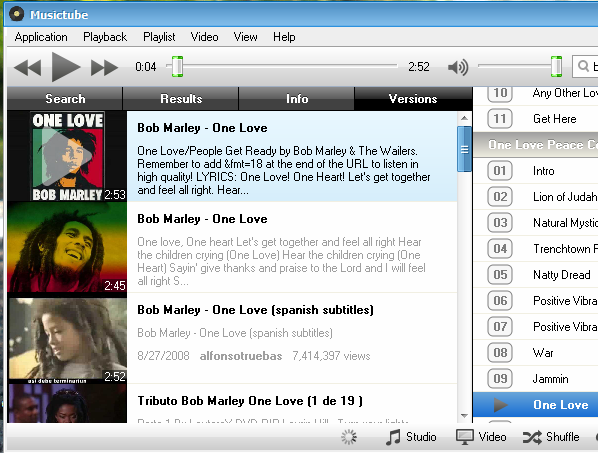
Well, that's about it for the features. Although it would've been nice if there was a feature to download the files (perhaps it's in the premium version). But other than that, I'm really impressed with its performance concerning the fact that it's relatively new and all that.
Anyhow, if interested, you can get it from this official MusicTube page. It's supposed to work in Ubuntu 10.04 and up but as said before, it gave me errors while trying to install it under 11.04 Natty Narwhal. Other than that, if you want to keep listening to millions of songs (both video and audio) all the time for free (well, you gotta pay for the app) by using the YouTube online video sharing service ... then MusicTube is a pretty cool tool, me thinks :D. Enjoy!
Wednesday, 5 October 2011
Whether you use Windows or GNU/Linux or most other similar tools for erasing your hard disk drive (not just formatting but deleted the partitions, etc) hoping that the "sensitive" data on the drive will be wiped securely... but as most knows, by using the "right" utility, it is possible to recover most of those data, if not all.
Or if you use a USB storage device such as an external hard drive or a pen drive, then having the ability to easily wipe out data without giving any chances of recovery becomes crucial. There are many software utilities available for that nowadays but some only run in the OS itself thus if you want to wipe a HDD, USB, etc that doesn't have an OS then you'd have to go through a bit of a hassle (unless you wanna manually attach that drive to your computer).
In that case, if you're looking for a free software application (has a separate professional version but the free one is more than enough for most of our needs) that runs inside MS Windows + also lets you boot into a boot-able environment of its own (where an operating system is not present, etc) ... then KillDisk is an excellent utility.

Main features...
*. Platform Independent file system eraser : Whether you have MS Windows, GNU/Linux, free BSD or Mac OSX , etc file systems... it doesn't matter to KillDisk it'll treat them all the same :).
*. Supports IDE / ATA / SATA / SCSI hard disk drives (including USB and SSD drives).
*. Erase data on both used and free space. If you only want to erase the free space then use the "Wipe" button. To completely erase the drive/partition, etc use the "Kill" feature.

*. Advanced scan methods for NTFS and FAT file systems.
*. Easily create a boot-able environment (a "DOS" type environment) using media such as: HDD, USB, Floppy, CD/DVD.

*. Wipes out deleted MFT and ROOT system records.
*. The free version supports only single-pass zero method which is pretty decent for most.
But for the best secured deletion ... you'd wanna consider purchasing the Professional version which includes few advanced features such as: user defined methods (including random numbers, characters, passes, etc) and few other Army and Government approved secure deletion algorithms, etc.
*. Erases both file system data and even boot sectors! (so always think twice before using :D).
These are just a few of its main features to mention. Although I only used it under Windows but as mentioned, it comes with a GUI tool that lets you easily create a boot-able disk drive. It however did not detect my GNU/Linux partition as a Ext4 file system but it can delete data nonetheless!.

And also remember, if you have a dual-boot environment with GNU/Linux and only want to wipe the GNU/Linux partition/s, then first make sure to remove the GRUB boot-loader. Otherwise you might not be able to boot-into MS Windows afterward (as long as you have the Windows installation CD/DVD ... this should be fixable most of the time, but just keep that in mind anyway).
So, if you're looking for a free, platform independent disk drive eraser that suits both individual and professional needs then KillDisk is certainly a pretty powerful application. But please be aware that if you want the best possible results then perhaps you might wanna purchase the "Professional" version + after using it, you will not be able to recover data ... so use it with caution. Good luck.
Get it from this KillDisk Home page.
Or if you use a USB storage device such as an external hard drive or a pen drive, then having the ability to easily wipe out data without giving any chances of recovery becomes crucial. There are many software utilities available for that nowadays but some only run in the OS itself thus if you want to wipe a HDD, USB, etc that doesn't have an OS then you'd have to go through a bit of a hassle (unless you wanna manually attach that drive to your computer).
In that case, if you're looking for a free software application (has a separate professional version but the free one is more than enough for most of our needs) that runs inside MS Windows + also lets you boot into a boot-able environment of its own (where an operating system is not present, etc) ... then KillDisk is an excellent utility.

Main features...
*. Platform Independent file system eraser : Whether you have MS Windows, GNU/Linux, free BSD or Mac OSX , etc file systems... it doesn't matter to KillDisk it'll treat them all the same :).
*. Supports IDE / ATA / SATA / SCSI hard disk drives (including USB and SSD drives).
*. Erase data on both used and free space. If you only want to erase the free space then use the "Wipe" button. To completely erase the drive/partition, etc use the "Kill" feature.

*. Advanced scan methods for NTFS and FAT file systems.
*. Easily create a boot-able environment (a "DOS" type environment) using media such as: HDD, USB, Floppy, CD/DVD.

*. Wipes out deleted MFT and ROOT system records.
*. The free version supports only single-pass zero method which is pretty decent for most.
But for the best secured deletion ... you'd wanna consider purchasing the Professional version which includes few advanced features such as: user defined methods (including random numbers, characters, passes, etc) and few other Army and Government approved secure deletion algorithms, etc.
*. Erases both file system data and even boot sectors! (so always think twice before using :D).
These are just a few of its main features to mention. Although I only used it under Windows but as mentioned, it comes with a GUI tool that lets you easily create a boot-able disk drive. It however did not detect my GNU/Linux partition as a Ext4 file system but it can delete data nonetheless!.

And also remember, if you have a dual-boot environment with GNU/Linux and only want to wipe the GNU/Linux partition/s, then first make sure to remove the GRUB boot-loader. Otherwise you might not be able to boot-into MS Windows afterward (as long as you have the Windows installation CD/DVD ... this should be fixable most of the time, but just keep that in mind anyway).
So, if you're looking for a free, platform independent disk drive eraser that suits both individual and professional needs then KillDisk is certainly a pretty powerful application. But please be aware that if you want the best possible results then perhaps you might wanna purchase the "Professional" version + after using it, you will not be able to recover data ... so use it with caution. Good luck.
Get it from this KillDisk Home page.
As most knows, with almost all the other GNU/Linux distributions (or other major software projects in general), Ubuntu also assign a code name every time they release a new version of their operating system. The current version number is 11.04 has the code name of "Natty Narwhal" and the upcoming 11.10 is called "oneiric ocelot".
I'm not a marketer thus have very little knowledge about how or why code names are used... but I guess it has something to do with branding. Anyhow, few hours ago, Mark Shuttleworth announced (the founder of Ubuntu OS) the official name for the upcoming 12.04 which will be released in 2012 April (if everything goes according to plan) and it'll be called, Precise Pangolin!.
As always, Mark had something interesting to say about the name (or the creature behind the name actually)...
And in somewhat a recent interview, Mark said that they "might" replace Firefox with Google Chrome which could have happened with the 12.04 version but since it's the LTS version ... it won't. But it could be something that'll take place in the 12.10, perhaps.
Anyhow if you're wondering about the official code name for the upcoming Ubuntu 12.04 (both LTS and the standard versions)... then it's Precise Pangolin and it's all about surviving the "lion"!.
I'm not a marketer thus have very little knowledge about how or why code names are used... but I guess it has something to do with branding. Anyhow, few hours ago, Mark Shuttleworth announced (the founder of Ubuntu OS) the official name for the upcoming 12.04 which will be released in 2012 April (if everything goes according to plan) and it'll be called, Precise Pangolin!.
As always, Mark had something interesting to say about the name (or the creature behind the name actually)...
"Now, I’ve recently spent a few hours tracking a pangolin through the Kalahari. I can vouch for their precision – there wasn’t an ant hill in the valley that he missed. Their scales are a wonder of detail and quite the fashion statement. I can also vouch for their toughness; pangolin’s regularly survive encounters with lions..."Anyway, the 12.04 release has another importance also since it's the "Long Term Support" (a.k.a LTS) which is for those who just can't stand for having to update their OS once every 6 months. So, once every 2 years a LTS version is released which carries no particular differences in packages but will be supported by Ubuntu (updates, bug fixes, etc) up to 3 years for the desktop edition and 5 years for the Ubuntu Sever Edition.
And in somewhat a recent interview, Mark said that they "might" replace Firefox with Google Chrome which could have happened with the 12.04 version but since it's the LTS version ... it won't. But it could be something that'll take place in the 12.10, perhaps.
Anyhow if you're wondering about the official code name for the upcoming Ubuntu 12.04 (both LTS and the standard versions)... then it's Precise Pangolin and it's all about surviving the "lion"!.
Tuesday, 4 October 2011
Almost all the popular file compression tools (archive managers) have the ability to split files and then merge them later, which is also the case with Ubuntu. Thanks to the default archive manager (called File-Roller), you can split any file by using it as long as you're using a compression format that supports file splitting (.rar for instance).
But the problem of using A compression container format to split files and store them has a bit of a known risk. I think most would agree that (at least in my experience) some of these split files have a tendency to be corrupted, which is a common "headache" concerning file downloading. For instance, have you ever encountered a "CRC error" while trying to re-merge a file that was split and stored in the .rar compression format?? (errrrrrrrrrr :D).
So, to avoid or minimize these sort of difficulties we need to have a dedicated, specially designed file splitter. Although under MS Windows there a lot of free tools (HJSplit is pretty famous) available so is with GNU/Linux too!.
If you'd like to play with your command-line a little bit then there are few dozens available but if you want something with a GUI "attached" to it :)... that can be used under Ubuntu Linux, then Gnome Split is a utility worth trying. It's written in Java and uses the GTK + toolkit thus integrates really well with Unity as well.
Main features...
*. Split and Merge any file.
*. 2 Times faster than the previous version according its the developers.
*. Even includes a "Wizard" for both splitting or merging.

*. Change file split using size or raw values, location, etc.
*. Use generic algorithms or different methods.
*. MD5 integrity checking.
*. Shows progress with speed, etc.
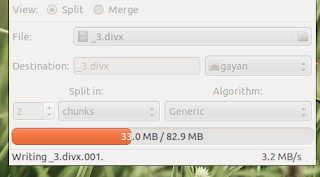
*. E-mail files afterward.
*. Enable/Disable notifications & few more settings can be accessed via the "Preferences" window.

You can install Gnome Split in Ubuntu 11.04 Natty Narwhal, 11.10 Oneiric Ocelot, 10.10 and 10.04 easily by using its PPA channel. To do that, as usual, open your terminal window and enter the below commands.
But the problem of using A compression container format to split files and store them has a bit of a known risk. I think most would agree that (at least in my experience) some of these split files have a tendency to be corrupted, which is a common "headache" concerning file downloading. For instance, have you ever encountered a "CRC error" while trying to re-merge a file that was split and stored in the .rar compression format?? (errrrrrrrrrr :D).
So, to avoid or minimize these sort of difficulties we need to have a dedicated, specially designed file splitter. Although under MS Windows there a lot of free tools (HJSplit is pretty famous) available so is with GNU/Linux too!.
 |
| It's ridiculously awesome! :D... |
Main features...
*. Split and Merge any file.
*. 2 Times faster than the previous version according its the developers.
*. Even includes a "Wizard" for both splitting or merging.

*. Change file split using size or raw values, location, etc.
*. Use generic algorithms or different methods.
*. MD5 integrity checking.
*. Shows progress with speed, etc.

*. E-mail files afterward.
*. Enable/Disable notifications & few more settings can be accessed via the "Preferences" window.

You can install Gnome Split in Ubuntu 11.04 Natty Narwhal, 11.10 Oneiric Ocelot, 10.10 and 10.04 easily by using its PPA channel. To do that, as usual, open your terminal window and enter the below commands.
sudo add-apt-repository ppa:gnome-split-team/ppaSo, if you want to avoid most of those merging errors + looking for a extremely easy to use, features rich, fast file splitter/jointer (PDF, .PST, multimedia files or anything!) that can be used in Ubuntu (or GNU/Linux in general), then Gnome Split is certainly one of the best out there without a doubt!.
sudo apt-get update
sudo apt-get install gnome-split
When it comes to software multimedia players there are millions out there but in all my honesty, the fully open-sourced, MPLayer is one of the best!. Not just playing video/audio files but it even has one of the most extremely powerful encoder which is being used as an "engine" for some of the most popular encoding tools as well.
Ironically, the default GUI of MPLayer (for both GNU/Linux and MS Windows) is a joke (no disrespect intended for the developers :D). It doesn't even resembles a fraction of the true power/features of the MPLayer command-line version. Because of this reason, developers all around the world has created GUI front-ends that uses the original mplayer command-line as the "engine", according to this official "related projects" page at MPlayer's web site, you'll find a hell lot of it :).
Anyhow, in the past I've used several of those GUI under both GNU/Linux and MS Windows. But SMPlayer and KMplayer are the ones that I like the most (if you know even better ones... please share! :D). Recently I came across a new front-end that uses the Mplayer called, MPlayerWW and I gotta say even after using it for a very short period... it really impressed me.
This MPlayer WW does carry around MPlayer characteristics such as fast loading times and decodes multimedia files quite efficiently (meaning low CPU usage while playing, without loosing the quality of course) and the GUI is beautifully designed that stays really simple (skin-able) yet it gives a huge list of additional features that can be really useful in times too.
Few main features...
*. MPlayer uses the ffmpeg library (including many others) thus can decode almost all the known multimedia formats: MPEG 1/2/4, H.264/263, Xvid, Divx, AAC, MP3, Theora, OGG Vorbis, Flac, OGM, Blu-Ray, etc.
*. Open DVD/CD or even HD TV via the main menu.
*. Supports both Direct 3D (without breaking the Window Aero interface, etc) and OpenGL rendering outputs.

*. Manually assign shortcut keys.
*. Built in Playlist (not the most subtly embedded one ... my only complain).
*. Change video settings such as: Hue, Brightness or Contract with built in GUI tools.
*. Equalizer.
*. Enable/Disable file association.
*. Change subtitle fonts, adjust delays, optimized DVD subs or download ones online, etc.
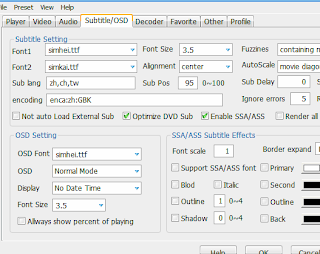
*. Gain/Boost audio levels.
*. Change audio/video delays (another highly useful feature for a this kind of application, no more voices before talking :P).
*. Add several (both audio and video related) filters for enhancing such as: Denoise, Deinterlace, DSP effects, re-sampling, rotate, scaling, etc.
*. Comes with MediaInfo built into it, so you can get advanced media info such as: bitrate, resolution, author, encoding library, etc.
These are just a fraction of the features that you can access via its "Preferences" section. Nothing is perfect, so I shouldn't brag that much :/ ... but I have a WMV file (WM formats in general are usually resource "hogs" and are not optimized codes in my experience) that takes a lot of my CPU cycles of my old Laptop.
I played with MPlayer-WW and not only it decoded the file, but it did it noticeably lesser amount of CPU usage thanks the internal optimized codec library (I think) and it was impressive. Other things such as the progress-bar "sensitivity" is really good too. As mentioned above, it supports Skins (comes with few of its own) thus you can easily change the look-n-feel.
The player however seems to be at beta stage currently so doesn't seems to have an installation wizard. So you just gotta de-compress the archive file and simply drag-n-drop the icon to create a shortcut + because of this, you can easily copy it into something like a USB storage device and use it as a extremely powerful portable media player as well.
So, if you're searching for one of the best GUIs for the open-source, free MPLayer multimedia rendering engine which doesn't need any third-party codec and plays almost all the known popular formats + can also be used as a portable application, then I humbly advice you to give a try at it!.
Get it from this MPlayer-WW home page. Enjoy!.
Ironically, the default GUI of MPLayer (for both GNU/Linux and MS Windows) is a joke (no disrespect intended for the developers :D). It doesn't even resembles a fraction of the true power/features of the MPLayer command-line version. Because of this reason, developers all around the world has created GUI front-ends that uses the original mplayer command-line as the "engine", according to this official "related projects" page at MPlayer's web site, you'll find a hell lot of it :).
Anyhow, in the past I've used several of those GUI under both GNU/Linux and MS Windows. But SMPlayer and KMplayer are the ones that I like the most (if you know even better ones... please share! :D). Recently I came across a new front-end that uses the Mplayer called, MPlayerWW and I gotta say even after using it for a very short period... it really impressed me.
This MPlayer WW does carry around MPlayer characteristics such as fast loading times and decodes multimedia files quite efficiently (meaning low CPU usage while playing, without loosing the quality of course) and the GUI is beautifully designed that stays really simple (skin-able) yet it gives a huge list of additional features that can be really useful in times too.
 |
| Even the OpenGL rendering worked really well with my old ATI card ... |
*. MPlayer uses the ffmpeg library (including many others) thus can decode almost all the known multimedia formats: MPEG 1/2/4, H.264/263, Xvid, Divx, AAC, MP3, Theora, OGG Vorbis, Flac, OGM, Blu-Ray, etc.
*. Open DVD/CD or even HD TV via the main menu.
*. Supports both Direct 3D (without breaking the Window Aero interface, etc) and OpenGL rendering outputs.

*. Manually assign shortcut keys.
*. Built in Playlist (not the most subtly embedded one ... my only complain).
*. Change video settings such as: Hue, Brightness or Contract with built in GUI tools.
*. Equalizer.
*. Enable/Disable file association.
*. Change subtitle fonts, adjust delays, optimized DVD subs or download ones online, etc.

*. Gain/Boost audio levels.
*. Change audio/video delays (another highly useful feature for a this kind of application, no more voices before talking :P).
*. Add several (both audio and video related) filters for enhancing such as: Denoise, Deinterlace, DSP effects, re-sampling, rotate, scaling, etc.
*. Comes with MediaInfo built into it, so you can get advanced media info such as: bitrate, resolution, author, encoding library, etc.
These are just a fraction of the features that you can access via its "Preferences" section. Nothing is perfect, so I shouldn't brag that much :/ ... but I have a WMV file (WM formats in general are usually resource "hogs" and are not optimized codes in my experience) that takes a lot of my CPU cycles of my old Laptop.
I played with MPlayer-WW and not only it decoded the file, but it did it noticeably lesser amount of CPU usage thanks the internal optimized codec library (I think) and it was impressive. Other things such as the progress-bar "sensitivity" is really good too. As mentioned above, it supports Skins (comes with few of its own) thus you can easily change the look-n-feel.
 |
| And when you're bored with it... just change the "skin" ;-)... |
So, if you're searching for one of the best GUIs for the open-source, free MPLayer multimedia rendering engine which doesn't need any third-party codec and plays almost all the known popular formats + can also be used as a portable application, then I humbly advice you to give a try at it!.
Get it from this MPlayer-WW home page. Enjoy!.
Subscribe to:
Posts (Atom)


